WordPress Security Checklist for MSP and IT Company Websites
Eight areas, one table you can hand to whoever runs the site, and a plain account of what the WordPress handbook and Google actually say.
A WordPress security checklist for an MSP or IT company site covers updates, logins, backups, hardening, plugins, a firewall, monitoring and recovery. Give each line an owner and a date, then rerun it every quarter.
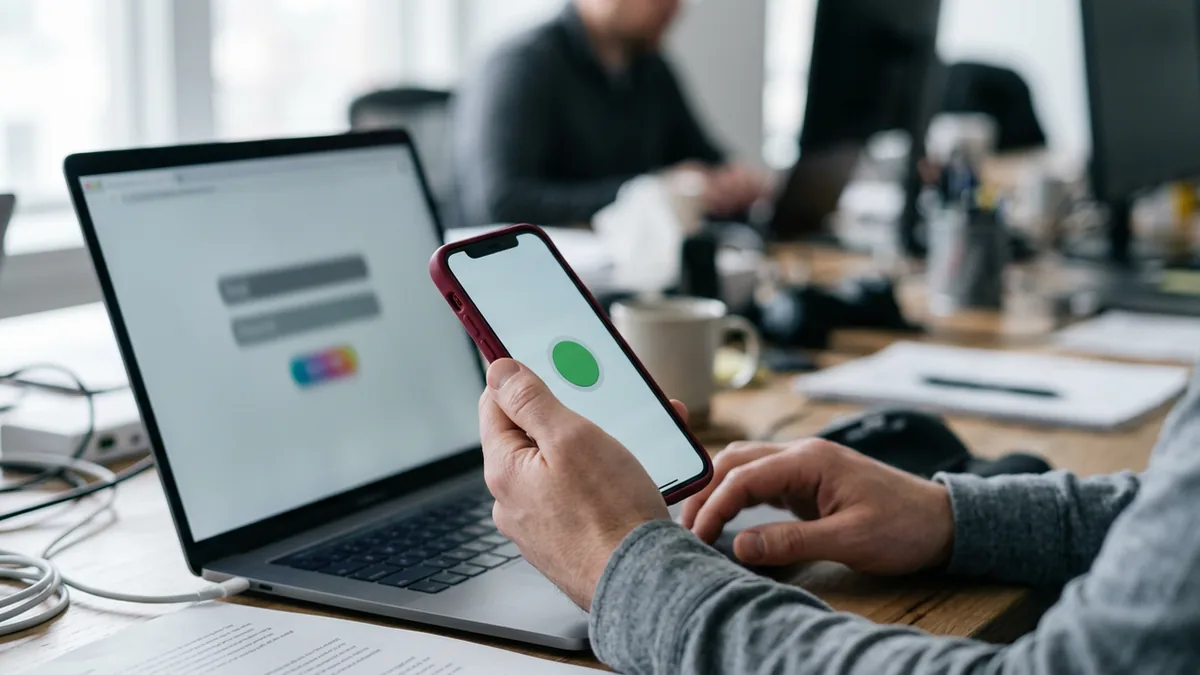
Here’s what keeps showing up. Marketing owns what the website says, IT owns the servers, and the WordPress install sits in the gap between them with an admin login nobody has reviewed in a year.
Nobody decided that. It just happened. On paper, a company that sells managed security should have its own site covered, and in practice the website is the one system with no ticket queue, no owner on call and no line in anybody’s quarterly review.
It’s a business problem before it’s a technical one. Google says pages affected by a security issue can appear with a warning label in search results, or behind a warning page in the browser, and its Search Console Help page on security issues says a review to clear the flag can take several days or weeks. Buyers look at your site before they call you. A warning label does the talking instead.
This is the list I’d hand the owner of the site, with a name next to every line. It covers security only. Routine upkeep such as form tests and speed checks lives in our website maintenance checklist, and if you want someone watching the site between reviews, see our website security monitoring page. Prefer to hand the whole job over? Start with our website management services, or our WordPress maintenance services for the WordPress layer.
One caveat. I’m a fractional CMO, not your security engineer. Every claim below comes from a named source, the WordPress developer handbook, WordPress.org, PHP.net or Google’s own help pages, and the server-side lines belong with whoever has server access. Where a suggestion is mine, I’ll say so.
The Short Version
The WordPress handbook calls security risk reduction, not risk elimination, and it names two usual kinds of attack, requests that exploit outdated software and brute-force password guessing. The checklist answers both with eight areas: updates, logins, backups, hardening, plugins, a firewall, monitoring and a recovery plan. Put a name and a date on each line, test one restore every quarter, and keep Google’s Security issues report where more than one person can see it.
The WordPress Security Checklist at a Glance
A WordPress security checklist is a repeatable list of controls that shrink the ways someone can get into a site, limit the damage if they do, and speed up recovery. The handbook sorts security into limiting access, containment, and preparation. Every line below does one of those three jobs.
| Area | What to check | How often | Owner |
|---|---|---|---|
| Updates | WordPress core, plugins, themes and the PHP version | A weekly look; PHP once a year | Site administrator, or the host |
| Logins | Unique passwords, two-step sign-in for every admin, no leftover accounts | Quarterly | Owner or operations |
| Backups | Database and files, copies in different places, one restore tested | Weekly at the minimum; restore test quarterly | Site administrator |
| Hardening | File editing off, permissions, wp-config.php, SFTP, HTTPS | Once, then at each review | Developer or host |
| Plugins and themes | Delete what’s unused, install from trusted sources only | Monthly | Site administrator |
| Firewall and login limits | A firewall in front of WordPress, login rate limits, an XML-RPC decision | Once, then quarterly | Host or developer |
| Monitoring | Search Console security report, file-change alerts, uptime | Monthly review, alerts always on | Marketing lead and site administrator |
| Recovery plan | Who gets called, where backups live, how to ask Google for a review | Yearly, and after any incident | Owner |
The frequencies are my suggestions. The handbook gives a cadence for backups and nothing firm for the rest, so treat the rest as a starting point. Adjust it to how your site behaves.

Fill in the owner column before anything else. A checklist with no names is a poster.
Updates: Core, Plugins, Themes and PHP
Start here, because the handbook does. Older versions of WordPress aren’t maintained with security updates, and once a fix ships, the details needed to exploit the old flaw are very likely public already. The Hardening WordPress page says that’s one of the main reasons to stay current.
An update that has sat in the queue for a quarter isn’t a backlog. It’s a published description of what’s wrong with your site.
Check how updates reach your install, because it varies. Automatic background updates arrived in WordPress 3.7. Since 5.6, new installations get automatic updates for both minor and major core releases by default, and older installations keep the earlier behavior unless someone turns major updates on. Plugins and themes are a separate question. The handbook’s upgrade guide says they’re updated automatically only “in special cases,” so don’t assume yours are. Open the Plugins screen and look. How often plugin updates should run, and who owns the queue, is covered in our WordPress plugin updates guide.
Back up before any upgrade. Both guides say so.
The PHP Version Nobody Owns
The PHP version under WordPress is the line that gets missed. WordPress.org’s requirements page recommends PHP 8.3 or greater, and says WordPress still runs on PHP 7.4 and up, but those versions are past end of life and may expose a site to vulnerabilities. PHP.net’s supported versions page lists security support for PHP 8.2 ending on 31 December 2026 and for 8.3 on 31 December 2027.
So ask your host which version the site runs. WordPress.org even publishes a copy-and-paste request for it. If the answer is 8.2, put a date in the owner column now, because that window closes on 31 December 2026.
Logins and Access: Passwords, Two-Step Sign-In and Who Is an Admin
Two things get attacked. The handbook says the usual attacks on a WordPress site fall into two groups, crafted requests that exploit old plugins and software, and brute-force guessing of passwords. Updates handle the first. This section handles the second.
Brute force is automated, and the handbook’s brute-force page notes the attempts are often spread across many machines, so even a failed attack can flood a site with requests. A strong password is the floor. Not the ceiling. The WordPress security team’s line, quoted on the handbook’s two-step authentication page, goes like this. “The weakest link in the security of anything you do online is your password.”
- Give every account a long, unique password kept in a password manager, with nothing built from your company name, your own name or a dictionary word.
- Turn on two-step sign-in for every administrator. WordPress core doesn’t ship it, according to the brute-force page, so it comes from a plugin or your company’s identity provider.
- Use an authenticator app, not text messages. The two-step page says SMS isn’t a secure channel.
- Look at passkeys. The handbook suggests a maintained plugin that supports them, with at least two authenticators enrolled per admin.
- Integrations get an Application Password, which has existed since WordPress 5.6 and can be revoked without touching anyone’s own password.
Now the people part. The handbook says to avoid easily guessed usernames such as admin or webmaster, because those are attacked first, and it warns that a hacker who reaches an administrator account can install malicious scripts that may compromise the whole server.
Once a quarter, open Users, filter to Administrators, and ask of every name, why? That’s my routine, not WordPress’s. Look for the contractor whose project ended, the shared “marketing” login, the person who left. Remove what nobody can explain. Plain enough. Our website ownership checklist covers the domain, DNS and hosting logins the same way.
Access nobody reviews doesn’t expire. It accumulates.
Backups You Have Actually Restored
A backup you’ve never restored is a hope. Nobody wants to find that out on the worst day of the quarter.
The handbook’s backup page makes four points worth writing down. Back up both the database and the files, because a typical WordPress site needs both to come back. Weekly for a smaller site. Daily for a busy one. Keep at least three to five recent copies in different places, such as the host, cloud storage and a local download. And back up your automatic backups with a manual one once in a while, to prove the automation still works.
The hardening page’s snapshot example shows why copies matter. A site is compromised on May 1 and nobody notices until May 12. With regular snapshots, the owner still has clean copies from before the break-in, and later ones that help show how it happened. With a single nightly copy that overwrites itself, the clean version would be gone.
My addition, and it’s a suggestion. Once a quarter, restore the latest backup to a staging copy and click through the site. Time it. Write the number on the checklist (and yes, someone needs a calendar reminder). That number is your real recovery time. It’s the only one that counts.
Hardening the Admin Area, Files and wp-config.php
This section is for your developer or host, so hand it over with the source attached, and ask them to tell you in writing which items are already done and which are waiting on a decision. Five items from the handbook’s hardening page.
- Turn off file editing. The dashboard lets administrators edit PHP files by default, which the handbook calls often the first tool an attacker uses after logging in, since it allows code execution. One line in wp-config.php,
define( 'DISALLOW_FILE_EDIT', true );, removes it. It won’t stop someone uploading malicious files, so it’s one layer and not the answer. - Lock down file permissions. The handbook offers “one possible permission scheme,” with directories at 755, files at 644, and the core folders writable only by your user account. On shared hosting, ask the host before changing anything.
- Protect wp-config.php. Only you and the web server should be able to read it, which generally means a 400 or 440 permission, and the handbook shows a rule that denies web access to the file. It also notes that moving the file one level up is disputed, so don’t treat that as a requirement.
- Connect over SFTP, never plain FTP. If you aren’t sure the host offers it, ask.
- Put the admin area behind HTTPS. WordPress.org lists HTTPS support as a hosting requirement, and the handbook calls an encrypted admin connection the strongest second layer.
The handbook also lists renaming the admin account and changing the database table prefix, then labels security through obscurity generally unsound as a primary strategy. Fine as extras. Not the plan.
Plugins and Themes: Fewer, Trusted, Current
The handbook’s instruction on plugins is two sentences long. Keep them updated, and if you aren’t using one, delete it from the system. Deactivated isn’t deleted.
It adds a rule on sources, which is to restrict yourself to the WordPress.org repository or well-known companies, since software from elsewhere may lead to issues.
If your service desk left software unpatched on client laptops for a quarter, you’d call it an incident and write it up. A WordPress site with a long plugin list and no owner is the same situation, only quieter.
The monthly job is short. Open the Plugins screen, sort by inactive, delete those, then read the names of what’s left and ask what each one does. If nobody can say, find out before the next update breaks it.
Firewalls, Login Limits and XML-RPC
The handbook describes three places to put a firewall, and they aren’t interchangeable. Some plugins sit inside WordPress and filter requests as it loads. A server-level web application firewall, ModSecurity being the example it names, filters requests before WordPress sees them. And a firewall service in front of the whole site works as a reverse proxy, taking traffic first by way of your DNS records and passing on what’s clean.
The brute-force page adds a preference. Rate-limit logins at the edge or the server where you can, because a plugin that throttles logins still runs inside PHP and uses resources under a heavy attack. A plugin beats nothing. It isn’t the first choice.
Then there’s xmlrpc.php, which the handbook calls a frequent brute-force target. If nothing you use needs it, disable it. If something does, such as a mobile app or a connected service, restrict it and rate-limit it hard.
A security plugin with nobody reading its alerts is decoration. Pick one layer. Know what it does. Write down who sees the notices.
Ask your host what it already does. The handbook warns that on a shared server, a compromised neighbor can put your site at risk even if you follow everything in the guide, so this conversation isn’t optional.
Monitoring: How You Find Out Before a Buyer Does
Prevention fails sometimes. The handbook says so plainly, and its answer is monitoring, so you can react faster, work out what happened and recover.
It describes two kinds. One watches your own site, with logs and file-change alerts for new or modified files. The other watches from outside, with a web-based integrity monitor that can spot defacement or added malware. The tools are the developer’s call. Your decision is who receives the alerts. The answer shouldn’t be one person’s inbox.
Then there’s Google. Search Console has a Security issues report, and if a Google evaluation finds hacked content, malware or social engineering on your site, the report shows what it found, with sample affected URLs and the date the issue was first detected. Google says to treat that report as the source of truth, because the warnings visitors see depend on their browsing context and you may not be able to reproduce them.
So add the marketing lead and the site administrator as users in Search Console, and open the report on the first of each month. Our technical SEO checklist for MSP websites covers the rest of what Search Console is for.
If the Site Is Hacked: A Short Recovery Plan
Write this plan before you need it. One page. It should sit on the same sheet as the checklist.
- Keep the logs before anything gets cleaned. The handbook says logs show the IP address, the time and what the attacker did.
- Find the last clean backup. The date the break-in started matters more than the date you noticed it.
- Reset every administrator password, remove accounts you can’t explain, and update everything.
- Fix the problem across the whole site, not on a few pages. Google says partial fixes don’t earn a partial return to search results, and that every listed issue has to be fixed.
- In the Security issues report, select Request Review and describe what you fixed. Google asks a request to explain the exact issue, the steps you took and the outcome. Then wait, and don’t resubmit before you get a decision.
If customer data may have been exposed, that’s incident-response territory, and a marketer’s list ends there. Bring in someone who does that work for a living.
What a Checklist Cannot Do
The handbook’s first point is the honest one. Security isn’t about perfectly secure systems. It’s risk reduction, not risk elimination. Nothing above makes a site impossible to break into, and anyone who tells you otherwise, whether a vendor, a host or a consultant with a slide deck, is selling something.
Hosts matter here too. The handbook says hosts are generally responsible for the infrastructure, not the application you install, and that hacks are rarely traced to the infrastructure and usually to the application. That’s your WordPress install, your plugins and your logins. Yours, even if the host is excellent.
Run the WordPress Security Checklist This Month
Five small jobs. In order.
- Write a name next to each of the eight areas in the table.
- Ask the host which PHP version the site runs.
- Count the administrator accounts and remove what nobody can explain.
- Restore the latest backup to a staging copy, and time it.
- Open the Security issues report and add a second person to Search Console.
That’s a morning. The work isn’t hard. The part that stalls is ownership, because nobody’s job description says “website.” If you’d like help turning the list into a routine someone keeps, book a growth strategy session.
What MSP Owners Ask About WordPress Security
Doesn’t our host already cover this?
Partly. The WordPress handbook says hosts are generally responsible for the infrastructure, meaning the server software and network, and not for the application you install on it.
So ask the host three things. Which PHP version does the site run, what backups does it keep and how do you restore them, and what does it do about other sites on the same server? The handbook lists open security conversations, recent stable server software and reliable backup and recovery as marks of a trusted host.
Do we need a security plugin?
None of the sources I read says one product is required. The handbook lists plugins, server firewalls and DNS-level services as separate ways to filter attacks, and its brute-force page prefers edge or server limits over plugin ones.
Whatever you choose, someone has to read its alerts. Pick the layer first, then the tool.
Weekly, daily or something else: how often should backups run?
Weekly for a smaller site and daily for a busy one, according to the handbook’s backup page, and always before an upgrade.
Keep at least three to five recent copies in different places, and test one restore a quarter. The quarterly test is my suggestion, not the handbook’s.
Does WordPress include two-step sign-in?
Not out of the box.
The handbook’s brute-force page says WordPress core doesn’t ship two-factor authentication, in its 2025 wording, so it comes from a plugin or an identity provider. The two-step page recommends authenticator apps over text messages.
Google flagged our site as hacked. Now what?
Affected pages can show a warning label in search results or a warning page in the browser, according to Google’s Search Console Help.
Fix every listed issue across the whole site, then select Request Review in the Security issues report and describe what you did. Reviews can take several days or weeks.
Is hiding the login page worth the trouble?
Only as a noise filter.
The brute-force page says obscuring the login URL can reduce noise but shouldn’t be your only defense, and the hardening page calls security through obscurity generally unsound as a primary strategy. Spend the time on two-step sign-in and login limits first.
See who owns your WordPress site’s security today
Talk to us about who owns each line of the checklist on your site, and what a quarterly review your team can keep would look like.
Book a Growth Strategy Call